Monday, October 28, 2024

HTML Lists


HTML Lists


Types of HTML Lists

There are three main types of lists in HTML:

  1. Unordered Lists
  2. Ordered Lists
  3. Nested Lists     4. Definition List 

5. Reversed Ordered Lists 

6. Start Attribute in Ordered Lists


1. Unordered List (<ul>)

An unordered list presents items in bullet points. The list items are defined using the <li> tag.

Example:

html

<ul> <li>Item 1</li> <li>Item 2</li> <li>Item 3</li> </ul>

This will render:

  • Item 1
  • Item 2
  • Item 3

2. Ordered List (<ol>)

An ordered list displays items in a sequential order, with numbers or letters.

Example:

html

<ol> <li>Step 1</li> <li>Step 2</li> <li>Step 3</li> </ol>

This will render:

  1. Step 1
  2. Step 2
  3. Step 3

You can change the numbering style using the type attribute.

Example of Different Numbering Styles:

html
<ol type="A"> <li>Item 1</li> <li>Item 2</li> <li>Item 3</li> </ol>

This renders: A. Item 1
B. Item 2
C. Item 3

Other values for type:

  • type="1": Default (numeric).
  • type="A": Uppercase letters.
  • type="a": Lowercase letters.
  • type="I": Uppercase Roman numerals.
  • type="i": Lowercase Roman numerals.

3. Nested Lists

You can nest lists by placing one list inside another list item.

Example:

html

<ul> <li>Fruits <ul> <li>Apple</li> <li>Banana</li> </ul> </li> <li>Vegetables <ul> <li>Carrot</li> <li>Broccoli</li> </ul> </li> </ul>

This will render:

  • Fruits
    • Apple
    • Banana
  • Vegetables
    • Carrot
    • Broccoli

4. Definition List (<dl>)

A definition list is used for listing terms and their definitions. The <dl> tag wraps the list, <dt> is used for the term, and <dd> is used for the description.

Example:

html
<dl> <dt>HTML</dt> <dd>Hypertext Markup Language</dd> <dt>CSS</dt> <dd>Cascading Style Sheets</dd> </dl>

This will render:

  • HTML: Hypertext Markup Language
  • CSS: Cascading Style Sheets

5. Customizing List Style Using CSS

You can style lists using CSS to change bullet points, spacing, and more.

Example: Custom Bullet Style

html
<style> ul.custom-bullet { list-style-type: square; } </style> <ul class="custom-bullet"> <li>Item 1</li> <li>Item 2</li> <li>Item 3</li> </ul>

This will display square bullets instead of the default round ones.

  • list-style-type can be disc (default), circle, square, none (no bullets).

Example: Image as a Bullet

html
<style> ul.custom-image { list-style-image: url('bullet.png'); } </style> <ul class="custom-image"> <li>Item 1</li> <li>Item 2</li> <li>Item 3</li> </ul>

This replaces the bullet points with a custom image.

6. Reversed Ordered Lists

You can reverse the numbering in an ordered list using the reversed attribute.

Example:

html
<ol reversed> <li>Step 3</li> <li>Step 2</li> <li>Step 1</li> </ol>

This will render: 3. Step 3
2. Step 2

  1. Step 1

7. Start Attribute in Ordered Lists

The start attribute allows you to define the starting number of an ordered list.

Example:

html
<ol start="5"> <li>Item 1</li> <li>Item 2</li> </ol>

This will render: 5. Item 1
6. Item 2

Summary of List Tags:

  • <ul>: Unordered list (bulleted).
  • <ol>: Ordered list (numbered).
  • <li>: List item.
  • <dl>: Definition list.
  • <dt>: Definition term.
  • <dd>: Definition description.

These examples cover the basics and customization options for HTML lists, helping you structure content effectively!


Example: Basic example of HTML List

HTML
<!DOCTYPE html>
<html>

<head>
    <title>GeeksforGeeks</title>
</head>

<body>
    <h2>Welcome To GeeksforGeeks Learning</h2>
    <h5>List of available courses</h5>
    <ul>
        <li>Data Structures & Algorithm</li>
        <li>Web Technology</li>
        <li>Aptitude & Logical Reasoning</li>
        <li>Programming Languages</li>
    </ul>
    <h5>Data Structures topics</h5>
    <ol>
        <li>Array</li>
        <li>Linked List</li>
        <li>Stacks</li>
        <li>Queues</li>
        <li>Trees</li>
        <li>Graphs</li>
    </ol>
</body>

</html>

Output:
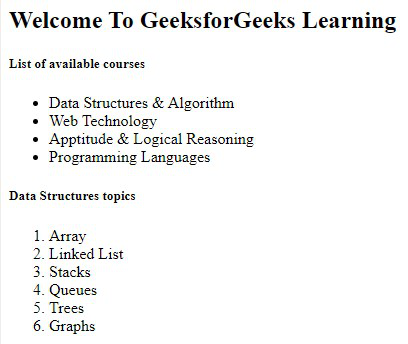
html list example output

HTML List

HTML List Tags

Here is the list of all lists tags HTML:

TagDescription
<ul>Defines an unordered list
<ol>Defines an ordered list
<li>Defines a list item
<dl>Defines a description list
<dt>Defines a term in a description list
<dd>Details the term in a description list

1. HTML Unordered List or Bulleted List

The unordered list items are marked with bullets, also known as bulleted lists. An unordered list starts with the <ul> tag, and each list item begins with the <li> tag.

Syntax:

<ul> list of items </ul>

Attribute: This tag contains two attributes which are listed below: 

  • compact: It will render the list smaller.
  • type: It specifies which kind of marker is used in the list.

Example: This example describes the unordered list.

HTML
<!DOCTYPE html>
<html>

<body>
    <h2>Grocery list</h2>
    <ul>
        <li>Bread</li>
        <li>Eggs</li>
        <li>Milk</li>
        <li>Coffee</li>
    </ul>
</body>

</html>

Output:
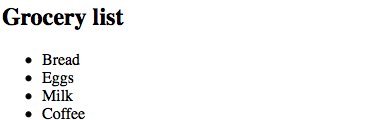
html unordered list

Unordered List

2. HTML Ordered List

In an ordered list, all list items are marked with numbers by default. An ordered list starts with the <ol> tag, and each list item begins with the <li> tag.

<ol>
   <li>Item1</li>
   <li>Item2</li>
   <li>Item3</li>
</ol>

Attributes:

  • compact: It defines the list should be compacted (compact attribute is not supported in HTML5. Use CSS instead.).
  • reversed: It defines that the order will be descending.
  • start: It defines from which number or alphabet the order will start.
  • type: It defines which type(1, A, a, I, and i) of the order you want in your list of numeric, alphabetic, or roman numbers.

Example: This example illustrates the use of the reverse attribute, control list counting & type attribute.

HTML
<!DOCTYPE html>
<html>

<head>
    <title>HTML ol tag</title>
</head>

<body>
    <h1 style="color: green">GeeksforGeeks</h1>
    <h3>HTML ol tag</h3>
    
<p>reversed attribute</p>


    <ol reversed>
        <li>HTML</li>
        <li>CSS</li>
        <li>JS</li>
    </ol>
    
<p>start attribute</p>


    <ol start="5">
        <li>HTML</li>
        <li>CSS</li>
        <li>JS</li>
    </ol>
    
<p>type attribute</p>


    <ol type="i">
        <li>HTML</li>
        <li>CSS</li>
        <li>JS</li>
    </ol>
</body>

</html>

Output:
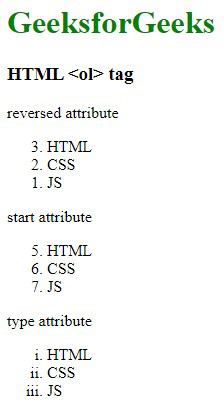
html ordered list

Ordered List with different list style

3. HTML Description List

A description list is a list of terms, with a description of each term. The <dl> tag defines the description list, the <dt> tag defines the term name, and the <dd> tag describes each term.

Syntax: 

<dl> Contents... </dl>

Please refer to the How to add description list of an element using HTML? article for further details.

Example: This example describes the HTML Description List.

HTML
<!DOCTYPE html>
<html>

<body>
    <h2>A Description List</h2>
    <dl> 
        <dt>Coffee</dt>
        <dd>- 500 gms</dd>
        <dt>Milk</dt>
        <dd>- 1 ltr Tetra Pack</dd>
    </dl>
</body>

</html>

Output:
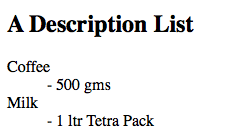
html description list

Description List


HTML Links Hyperlinks

Basic Syntax of a Hyperlink

html
<a href="URL">Link Text</a>
  • href: Specifies the destination URL of the link.
  • Link Text: The clickable text or content that acts as a link.

1. Link to an External Website

html

<a href="https://www.example.com">Visit Example</a>

This link takes the user to the external website https://www.example.com.

2. Link to Another Page on the Same Website

html

<a href="about.html">About Us</a>

This link takes the user to a page named about.html within the same website.

3. Open a Link in a New Tab

You can use the target="_blank" attribute to open a link in a new tab.

html

<a href="https://www.example.com" target="_blank">Open Example in New Tab</a>

4. Link to an Email Address

To create a link that opens the default email client with a pre-filled recipient:

html

<a href="mailto:someone@example.com">Send Email</a>

5. Link to a Phone Number (for mobile devices)

For clickable phone numbers, especially useful for mobile users:

html

<a href="tel:+8901010994">Call Us</a>

6. Link to a Section within the Same Page (Anchor Links)

You can link to specific sections of a page using anchors.

  1. First, create an id for the target element:

    html

    <h2 id="section1">Section 1</h2>
  2. Then, create a link that points to that id:

    html

    <a href="#section1">Go to Section 1</a>

7. Linking to a File (PDF, Image, etc.)

You can link directly to files like PDFs, images, or documents for users to download or view.

html

<a href="files/my-document.pdf">Download PDF</a>

8. Link with an Image

Instead of text, you can use an image as a link.

html

<a href="https://www.example.com"> <img src="image.jpg" alt="Example Image"> </a>

09. Make Part of Text or Paragraph a Link

You can embed a link inside a paragraph or other text elements.

html
<p>For more information, visit our <a href="https://www.example.com">homepage</a>.</p>

Example Code with Different Types of Links

html
<!DOCTYPE html> <html lang="en"> <head> <meta charset="UTF-8"> <meta name="viewport" content="width=device-width, initial-scale=1.0"> <title>HTML Links Example</title> </head> <body> <h1>Different Types of HTML Links</h1> <!-- Link to an external site --> <a href="https://www.example.com">Visit Example Website</a><br> <!-- Open link in new tab --> <a href="https://www.example.com" target="_blank">Open Example in New Tab</a><br> <!-- Link to another page on the same website --> <a href="about.html">About Us</a><br> <!-- Email link --> <a href="mailto:info@example.com">Send us an Email</a><br> <!-- Phone number link --> <a href="tel:+1234567890">Call Us: +1234567890</a><br> <!-- Anchor link to a section on the same page --> <a href="#section1">Go to Section 1</a><br> <!-- Link with tooltip --> <a href="https://www.example.com" title="Click here to visit Example">Example with Tooltip</a><br> <!-- Link to download a PDF file --> <a href="files/document.pdf" download>Download PDF Document</a><br> <!-- Link with an image --> <a href="https://www.example.com"> <img src="https://via.placeholder.com/150" alt="Example Image"> </a><br> <!-- Section 1 (Target for the anchor link) --> <h2 id="section1">Section 1</h2> <p>This is the content of Section 1.</p> </body> </html>

Summary of Key Attributes:

  • href: The URL or path to the link's destination.
  • target="_blank": Opens the link in a new tab.
  • title: Displays a tooltip on hover.
  • download: Downloads a file instead of opening it.
  • mailto:: Creates an email link.
  • tel:: Creates a clickable phone number link.

HTML Colors


HTML Colors


HTML Background-color


background colour 

<h1 style="background-color:DodgerBlue;">Hello World</h1>

<p style="background-color:Tomato;">
Lorem ipsum dolor sit amet, consectetuer adipiscing elit, sed diam nonummy nibh euismod tincidunt ut laoreet dolore magna aliquam erat volutpat.
Ut wisi enim ad minim veniam, quis nostrud exerci tation ullamcorper suscipit lobortis nisl ut aliquip ex ea commodo consequat.
</p>


Text Color 


<h3 style="color:Tomato;">Hello World</h3>

<p style="color:DodgerBlue;">Lorem ipsum dolor sit amet, consectetuer adipiscing elit, sed diam nonummy nibh euismod tincidunt ut laoreet dolore magna aliquam erat volutpat.</p>

<p style="color:MediumSeaGreen;">Ut wisi enim ad minim veniam, quis nostrud exerci tation ullamcorper suscipit lobortis nisl ut aliquip ex ea commodo consequat.</p>


The <bgcolor> is the attribute to set the background color of an HTML element. This attribute is used with the following tags:

  • <body>
  • <table>
  • <marquee>
  • <td>
  • <th>
  • <tr>

Deprecated <bgcolor> Usage Examples

1. <body> tag

Sets the background color of the entire page.

html

<body bgcolor="lightblue"> <h1>This is a light blue background</h1> </body>

2. <table> tag

Sets the background color of the table.

html
<table bgcolor="lightgray" border="1"> <tr> <td>Row 1, Cell 1</td> <td>Row 1, Cell 2</td> </tr> </table>

3. <marquee> tag

Sets the background color for the scrolling text.

html
<marquee bgcolor="yellow">This is scrolling text with a yellow background!</marquee>

4. <td> tag

Sets the background color for a table cell.

html

<table border="1"> <tr> <td bgcolor="lightgreen">Cell 1 with green background</td> <td>Cell 2</td> </tr> </table>

5. <th> tag

Sets the background color for a table header cell.

html
<table border="1"> <tr> <th bgcolor="pink">Header 1</th> <th>Header 2</th> </tr> <tr> <td>Row 1, Cell 1</td> <td>Row 1, Cell 2</td> </tr> </table>

6. <tr> tag

Sets the background color for an entire row in a table.

html

<table border="1"> <tr bgcolor="lightyellow"> <td>Row 1, Cell 1</td> <td>Row 1, Cell 2</td> </tr> <tr> <td>Row 2, Cell 1</td> <td>Row 2, Cell 2</td> </tr> </table>

HTML Text Formatting


HTML Text Formatting

HTML Formatting Elements

1. <i> – Italicizes text

Use the <i> tag to display text in italics without implying emphasis.

<i>This is italic text.</i>

2. <small> – Reduces the font size of the text

The <small> tag renders text in a smaller font than the surrounding text.

<small>This text is smaller than the rest.</small>

3. <ins> – Highlights inserted text

The <ins> tag marks text as newly added or inserted, often displayed with an underline.

<ins>This is inserted text.</ins>

4. <sub> – Displays subscript text

Use the <sub> tag for subscripted text, often used in chemical formulas or footnotes.

H<sub>2</sub>O

5. <strong> – Emphasizes important text, often rendered in bold

The <strong> tag is semantically meaningful and indicates that the text is of high importance.

<strong>This text is bold and important.</strong>

6. <b> – Makes text bold

The <b> tag visually makes the text bold but does not imply any special significance.

<b>This is bold text.</b>

7. <mark> – Highlights text with a background color

The <mark> tag highlights text with a background color, similar to using a highlighter on paper.

<mark>This text is highlighted.</mark>

8. <del> – Strikes through text

The <del> tag is used to show that text has been deleted or is no longer relevant.

<del>This text is crossed out.</del>

9. <em> – Emphasizes text, typically italicized

The <em> tag is used for emphasized text and is usually rendered in italics to highlight importance.

<em>This text is emphasized.</em>

10. <sup> – Displays superscript text

Use the <sup> tag to show superscripted text, commonly used in exponents or footnotes.

E = mc<sup>2</sup>


Job Portal

 new job aa gi computer operator  fast send