Monday, October 28, 2024

HTML Paragraphs


HTML Paragraphs


The <p> tag in HTML signifies a paragraph. Enclosed within the opening <p> and closing </p> tags, any content is recognized as a paragraph. As a block-level element, a new paragraph inherently starts on a fresh line, with browsers intuitively adding space before and after a paragraph for enhanced readability.

Syntax:

<p> Content </p>

Example 1: The example explains the HTML <p> tag.

HTML
<!DOCTYPE html>
<html lang="en">

<head>
<title>The p tag</title>
</head>
<body>
    <p>A Computer Science portal for geeks.</p>
    <p>It contains well written, well thought articles.</p>
</body>
</html>

Output:

Multiple p Tags

Example 2: This example explains the HTML <p> tag having multiple lines.

HTML
<!DOCTYPE html>
<html lang="en">

<head>
 <title>HTML p tag</title>
</head>
<body>
    <p>
        This paragraph has multiple lines.
        But HTML reduces them to a single line,
        omitting the carriage return we have used.
    </p>
    <p>
        This paragraph has multiple spaces.
        But HTML reduces them all to a single
        space, omitting the extra spaces and 
        line we have used.
    </p>
</body>
</html>

Output:

p tag with multiple lines

The <br> tag

The HTML <br> tag element creates a line break, giving you a new line without starting a new paragraph. Use <br> when you want to move to the next line without beginning a whole new paragraph.

Syntax:

 <br>

Example: This example explains the <br> tag inside the <p> tag to add the line-break.

HTML
<!DOCTYPE html>
<html lang="en">

<head>
    <title>HTML paragraph
    </title>
</head>

<body>
    <p>
        This paragraph has multiple
        <br>lines. But HTML reduces them
        <br>to a single line, omitting
        <br>the carriage return we have used.
    </p>
</body>

</html>

Output:

Use of br tag inside the p tag

The <hr> tag

The HTML <hr> tag is used to create a horizontal rule or line, visually separating content on a webpage. Use <hr> when you want to insert a horizontal line to signify a division between sections or elements, providing a clear visual break in the page.

Syntax: 

 <hr>

Example: In this example we will use the <hr> tag with an example by using <p> tag also.

HTML
<!DOCTYPE html>
<html lang="en">

<head>
    <title>HTML Horizontal Rule Example</title>
</head>

<body>
    <h1>
        Welcome to My Website
    </h1>

    <p>
        GeeksforGeeks is a leading
        platform that provides computer
        science resources and coding challenges
    </p>

    <hr>

    <p>
        GeeksforGeeks is a leading platform
        that provides computer science resources
        and coding challenges
    </p>
</body>

</html>

Output:

Screenshot-2023-12-18-152336

Output

Align attribute

The <p> tag specifically supports the alignment attribute and allows us to align our paragraphs in left, right, or center alignment. 

Syntax: 

<p align="value">

Note: The align attribute is deprecated in HTML5, and styles should be used via CSS for better practices.

Example: This example explains the align attribute to align the content in the <p> tag.

HTML
<!DOCTYPE html>
<html lang="en">

<head>
       <title>HTML paragraph
    </title>
</head>

<body>
    <p align="center">
        Welcome Geeks
    </p>
    <p align="left">
        A Computer Science portal for geeks.
    </p>
    <p align="right">
        It contains well written, well thought articles.
    </p>
</body>


</html>

Output:

Use of align attribute in p tag

The <pre> tag

The HTML <pre> tag is used for pre-formatted text. It keeps the original spaces and line breaks exactly as they are in the code. When you use <pre>, the text appears in a fixed-width font, preserving the formatting and layout just as it looks in the HTML code.

Syntax:

<pre> Content </pre> 

Example: This example explains the use of the <pre> tag in the <p> tag.

HTML
<!DOCTYPE html>
<html lang="en">

<head>
        <title>HTML paragraph
    </title>
</head>

<body>
    <pre>
    This paragraph has multiple
    lines. But it is displayed 
    as it is unlike the paragraph 
    tag.
   </pre>

    <pre>
    This     paragraph has multiple
    spaces. But     it is displayed 
    as it is    unlike the paragraph 
         tag.
   </pre>
</body>

</html>

Output:

Use of pre tag in the p tag


HTML Headings


HTML Headings

HTML headings are used to define the content hierarchy and structure of a webpage. They range from <h1> to <h6>, with <h1> being the most important heading and <h6> the least important. Proper use of headings helps improve readability, SEO, and accessibility.

Levels of HTML Heading Tags

HTML offers six levels of heading elements, each serving a different purpose in structuring your content:

  • <h1>: The main heading or title, representing the primary topic of the page.
  • <h2>: Subheadings that divide content into major sections.
  • <h3> to <h6>: Smaller headings are used for further subdivisions within sections.

Purpose and Usage of HTML Heading Tags

Headings are essential for organizing content on a webpage. Here’s a detailed guide on how to use each level effectively:

<h1> – Main Heading (Largest)

  • Represents the primary focus of the page, usually used for the main title.
  • Use only one <h1> tag per page for the best SEO practices.
  • Makes it clear to both users and search engines what the main topic is.

<h2> – Subheadings

  • Ideal for dividing the content into major sections.
  • If the content has further subsections, use <h3> to create a logical flow.

<h3> to <h6> – Smaller Headings

  • These heading levels are used for finer subdivisions, gradually decreasing in size and importance.
  • <h3> is used for subsections under <h2>, while <h4> to <h6> are used for additional, less important subdivisions.

Screenshot-2023-12-17-130848

Syntax for HTML Headings

When using HTML heading tags, ensure that the tag names are in lowercase. Here’s the syntax:

// the 'h' inside the tag should be in small case only.
<h1>Heading 1</h1>
<h2>Heading 2</h2>
<h3>Heading 3</h3>
<h4>Heading 4</h4>
<h5>Heading 5</h5>
<h6>Heading 6</h6>

Examples of HTML Headings

Example: In this example, we will see the HTML heading tags.

HTML
<!DOCTYPE html>
<html>

<body>
    <h1>This is heading h1</h1>
    <h2>This is heading h2</h2>
    <h3>This is heading h3</h3>
    <h4>This is heading h4</h4>
    <h5>This is heading h5</h5>
    <h6>This is heading h6</h6>
</body>

</html>

Output:

HTML Headings

Customization in HTML Heading Tags

The default size of HTML headings can be changed, using the style attribute.

Example: In this example explains the HTML heading tags by specifying the size of the font.

HTML
<!DOCTYPE html>
<html>

<body>

    <h1>H1 Heading</h1>

    <!-- With the help of Style attribute you can customize
           the size of the heading, As done below-->

    <h1 style="font-size: 50px">H1 with new size.</h1>

    <!-- Here font-size is the property by which  we can 
           modify the heading. Here we kept it 50px i.e. 50 pixels -->

</body>

</html>

Output:

HTML Headings

HTML Headings Example Output

Supported Browsers

HTML INTRO


HTML Introduction

Last Updated : 18 Sep, 2024

HTML, or HyperText Markup Language is the standard markup language used to create web pages. It is a combination of Hypertext and Markup language. The Hypertext defines the link between web pages, and Markup defines the text document within tags to structure the web pages. This language annotates text so that machines can understand and manipulate it accordingly. HTML is human-readable and uses tags to define what manipulation has to be done on the text. This guide will help you understand and explain the workings of HTML with examples.

What is HTML?

HTML stands for HyperText Markup Language and it is used to create webpages. It uses HTML tags and attributes to describe the structure and formatting of a web page.

HTML consists of various elements, that are responsible for telling search engines how to display page content. For example, headings, lists, images, links, and more.

HTML Example

HTML
<!DOCTYPE html>
<html>

<head>
    <title>First HTML Code</title>
</head>

<body>
    <h2>Welcome To GFG</h2>
    <p>Hello Geeks</p>
</body>

</html>

Features of HTML

  • It is easy to learn and easy to use.
  • It is platform-independent.
  • Images, videos, and audio can be added to a web page.
  • Hypertext can be added to the text.
  • It is a markup language.

HTML Elements and Tags

HTML uses predefined tags and elements that instruct the browser on how to display the content. HTML elements include an opening tag, some content, and a closing tag. It’s important to remember to include closing tags. If omitted, the browser applies the effect of the opening tag until the end of the page.

This section will dive into the basic structure of an HTML page, which includes essential building-block elements like doctype declaration, HTML, head, title, and body elements.

opening and closing tag HTML

HTML Page Structure

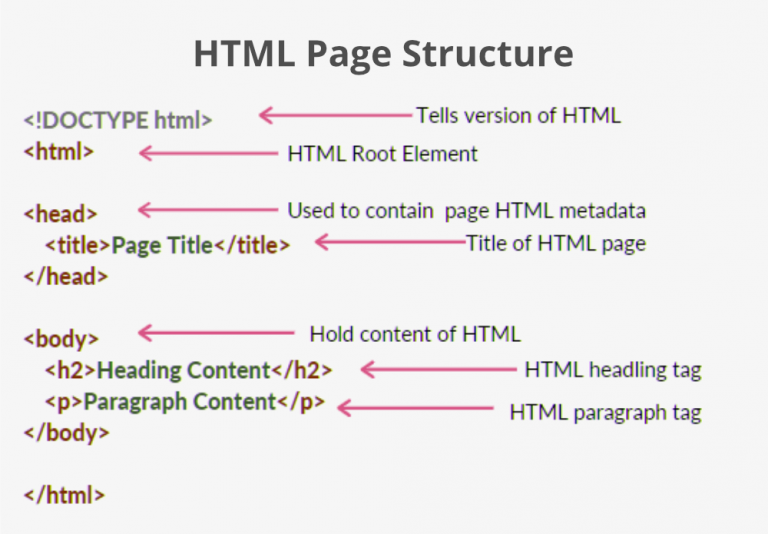
The basic structure of an HTML page is shown below. It contains the essential building-block elements (i.e. doctype declaration, HTML, head, title, and body elements) upon which all web pages are created.

HTML page structure

  • <!DOCTYPE html> – This is the document type declaration (not technically a tag). It declares a document as being an HTML document. The doctype declaration is not case-sensitive.
  • <html> – This is called the HTML root element. All other elements are contained within it.
  • <head> – The head tag contains the “behind the scenes” elements for a webpage. Elements within the head aren’t visible on the front end of a webpage. HTML elements used inside the <head> element include: 
  • <style> – This HTML tag allows us to insert styling into our web pages and make them appealing to look at with the help of CSS.
  • <title> – The title is what is displayed on the top of your browser when you visit a website and contains the title of the webpage that you are viewing.
  • <base> – It specifies the base URL for all relative URL’s in a document.
  • <noscript> – Defines a section of HTML that is inserted when the scripting has been turned off in the user’s browser.
  • <script> – This tag is used to add functionality to the website with the help of JavaScript.
  • <meta> – This tag encloses the metadata of the website that must be loaded every time the website is visited. For eg:- the metadata charset allows you to use the standard UTF-8 encoding on your website. This in turn allows the users to view your webpage in the language of their choice. It is a self-closing tag.
  • <link> – The ‘link’ tag is used to tie together HTML, CSS, and JavaScript. It is self-closing.
  • <body> – The body tag is used to enclose all the visible content of a webpage. In other words, the body content is what the browser will show on the front end.

An HTML document can be created using an HTML text editor. Save the text file using the “.html” or “.htm” extension. Once saved as an HTML document, the file can be opened as a webpage in the browser.

Note: Basic/built-in text editors are Notepad (Windows) and TextEdit (MacOS). Other advanced text editors include Sublime Text, Visual Studio Code, Froala, etc.

HTML History

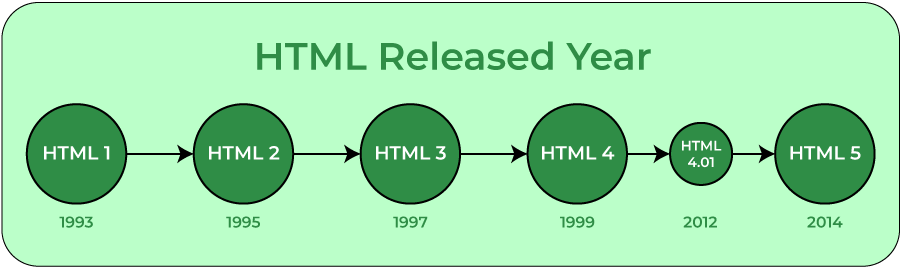
HTML is a markup language used by the browser to manipulate text, images, and other content, in order to display it in the required format. HTML was created by Tim Berners-Lee in 1991. The first-ever version of HTML was HTML 1.0, but the first standard version was HTML 2.0, published in 1995.

Currently, we are using HTML5, which is the latest and most recent version of HTML.

HTML History

Advantages of HTML

  • HTML is used to build websites.
  • It is supported by all browsers.
  • It can be integrated with other languages like CSS, JavaScript, etc.

Disadvantages of HTML

  • HTML can only create static web pages. For dynamic web pages, other languages have to be used.
  • A large amount of code has to be written to create a simple web page.
  • The security feature is not good.

Conclusion

In conclusion, mastering HTML is a fundamental step in your web development journey. This guide serves as a comprehensive resource for understanding HTML, from the basics to more advanced topics. Remember, HTML is more than just a markup language – it’s a powerful tool for creating engaging, accessible, and SEO-friendly websites.

Job Portal

 new job aa gi computer operator  fast send